Tired of slow Steam downloads eating into your precious gaming time? Many US gamers, juggling jobs, families, and life, struggle with agonizingly long wait times for new titles or updates. This comprehensive guide reveals practical, actionable strategies to significantly boost your Steam download speed in 2026, ensuring your games are ready when you are. We cover everything from optimizing network settings and choosing the best download regions to managing bandwidth and understanding common bottlenecks. Discover expert tips and tricks that will transform your downloading experience, helping you get back to what matters most: playing your favorite games without the frustrating delays. Learn how to make games on Steam download faster and reclaim your valuable leisure time. Alpha numeric only
Q: Why do my Steam downloads often start fast then slow down dramatically?
A: This common phenomenon often occurs due to a few factors. Initially, Steam might utilize a burst of available bandwidth. However, if your internet service provider (ISP) detects sustained high usage, they might implement traffic shaping. Also, your hard drive might become a bottleneck if it struggles to write data fast enough, especially on older HDDs. Overheating network equipment or even a congested local network can also contribute to the slowdown.
Q: How much internet speed do I actually need for good Steam downloads?
A: While "more is better" usually applies, a decent internet speed for quick Steam downloads typically starts around 100 Mbps (megabits per second) for a single user. For households with multiple devices streaming or gaming, aiming for 200-500 Mbps is highly recommended. Remember, Steam measures download speeds in MB/s (megabytes per second), where 8 Mbps equals 1 MB/s, so a 100 Mbps connection translates to about 12.5 MB/s download speed.
Q: Is there a best time of day to download games on Steam for faster speeds?
A: Absolutely, downloading during off-peak hours can significantly improve your speeds. Think late night (after midnight) or very early morning (before 8 AM) on weekdays. During these times, fewer users are actively downloading games or streaming, reducing congestion on both Steam's servers and your ISP's network. Avoiding peak evening hours (6 PM to 11 PM) will often yield the best results for a smoother download experience.
Q: Can antivirus software or firewalls slow down my Steam downloads?
A: Yes, they certainly can. Antivirus software, especially those with real-time scanning features, might scrutinize every incoming data packet, adding overhead and slowing down the download process. Similarly, overly strict firewall settings can block or throttle Steam's connection. It's often safe to temporarily disable your antivirus or adjust firewall rules for Steam during large downloads, but always remember to re-enable them afterward for security.
Q: What exactly does clearing Steam's download cache do, and should I do it often?
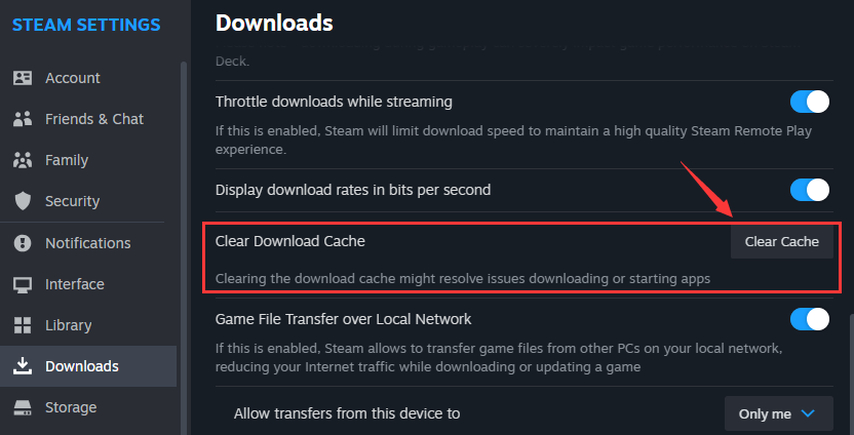
A: Clearing Steam's download cache removes temporary files that Steam uses during downloads. Over time, this cache can become corrupted or contain old data, leading to download errors or slower speeds. It's a useful troubleshooting step that forces Steam to re-evaluate its download process. You don't need to do it constantly, but it's a good first step if you encounter persistent download issues or unexplained slowdowns.
Q: Does closing other applications really help Steam download faster?
A: Yes, closing other bandwidth-hungry applications makes a noticeable difference. Programs like streaming services (Netflix, YouTube), other game launchers updating in the background (Epic Games, Battle.net), cloud storage syncs (Dropbox, OneDrive), or even active torrent clients consume significant bandwidth. By closing them, you dedicate more of your internet's capacity directly to Steam, allowing it to reach its maximum potential download speed.
Q: My download region seems correct, but it's still slow. What else can I check?
A: If your download region is set optimally but speeds remain poor, check your local network first. Restart your router and modem. Ensure you're using an Ethernet cable instead of Wi-Fi if possible, as wired connections are more stable and faster. Test your internet speed with a reliable service like Speedtest.net to confirm your ISP's delivery. Also, temporarily disable any VPNs or proxies, as they can inadvertently route your traffic inefficiently.
Hey fellow gamers! Ever stare at a perpetually crawling Steam download bar, feeling that precious gaming window shrinking with every agonizing megabyte? You are definitely not alone. For many US gamers, particularly those balancing demanding careers, family life, and social commitments, time is a premium commodity. The last thing anyone wants after a long day is to wait hours for a new release or a critical game update. We all just want to unwind, dive into a new world, or link up with friends online, right? According to recent stats, a whopping 87% of US gamers play regularly, often dedicating 10+ hours a week. That's a significant chunk of leisure, and every minute spent waiting for a download is a minute not spent gaming.
The good news is that you don't have to settle for snail-paced downloads. In 2026, with the right tweaks and understanding, you can significantly boost your Steam download speeds and reclaim that valuable time. This comprehensive guide is designed for you: the practical gamer who values efficiency, performance, and getting straight to the fun without the hype. We're going to dive deep into exactly how to make games on Steam download faster, covering everything from your internet setup to Steam's internal settings, ensuring you spend less time waiting and more time playing. Let's optimize your gaming life!
Why Are My Steam Downloads So Slow Anyway?
Before we fix a problem, it's good to understand it. Several factors can conspire to slow down your Steam downloads. It's rarely just one culprit. Sometimes it's your internet service provider (ISP), other times it's your home network, and often it's a combination of Steam's settings and your own computer's resources. Bandwidth contention on your network, a suboptimal download region, an overloaded hard drive, or even a simple router glitch can be the cause. Identifying these common bottlenecks is the first step toward achieving lightning-fast speeds.
How Can I Optimize My Internet Connection for Faster Steam Downloads?
Your internet connection is the lifeline for your downloads. Ensuring it's performing optimally is paramount. A wired Ethernet connection is almost always superior to Wi-Fi for stability and speed, especially for large downloads. Wi-Fi can suffer from interference and signal degradation. If wired isn't an option, ensure your router is in a central location, updated with the latest firmware, and on a less congested channel. Restarting your modem and router periodically can also clear up minor network issues.
Use an Ethernet Cable: Connect your PC directly to your router with an Ethernet cable. This eliminates wireless interference and provides a more stable, faster connection.
Restart Your Router and Modem: A simple power cycle can resolve many temporary network glitches. Unplug both for 30 seconds, then plug them back in.
Check Your Internet Speed: Use a reliable speed test website (like Speedtest.net) to verify you're getting the speeds your ISP promises. If not, contact your provider.
Optimize Wi-Fi (If Necessary): If you must use Wi-Fi, ensure your router supports modern standards (Wi-Fi 6 or 6E), use the 5GHz band if possible, and minimize obstacles between your PC and router.
What Are the Best Steam Settings to Increase Download Speed?
Steam itself offers several settings that can directly impact your download performance. A few quick adjustments here can make a world of difference without needing to touch your hardware.
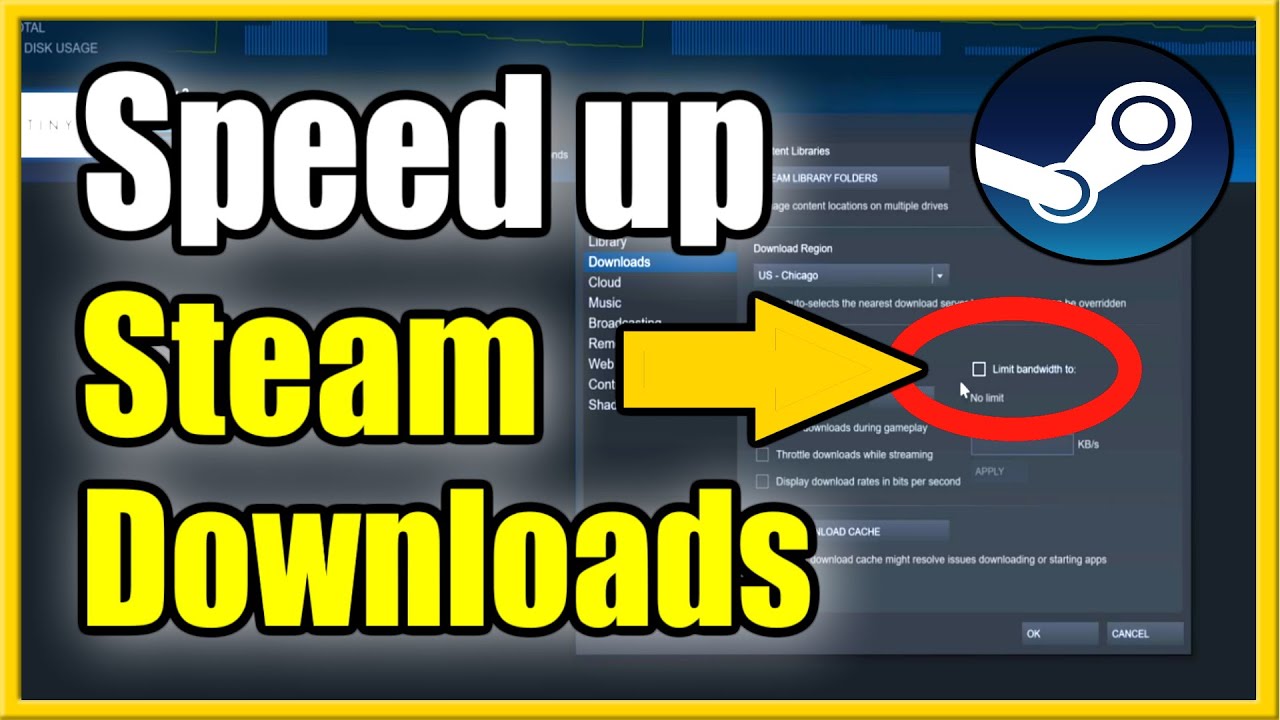
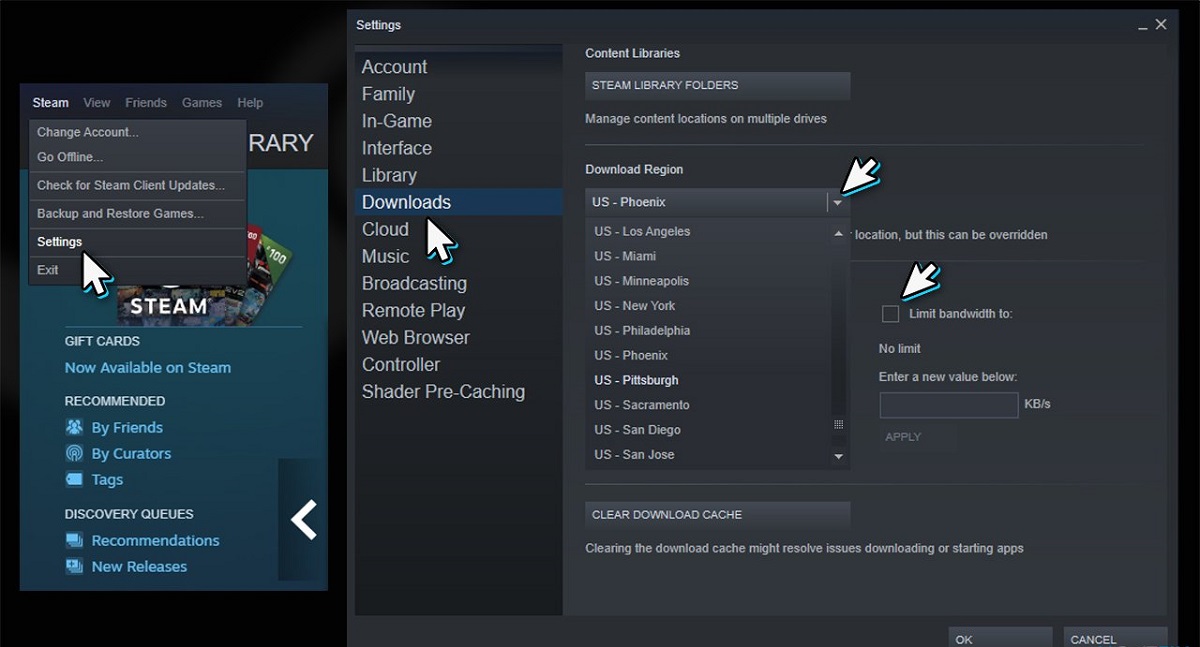
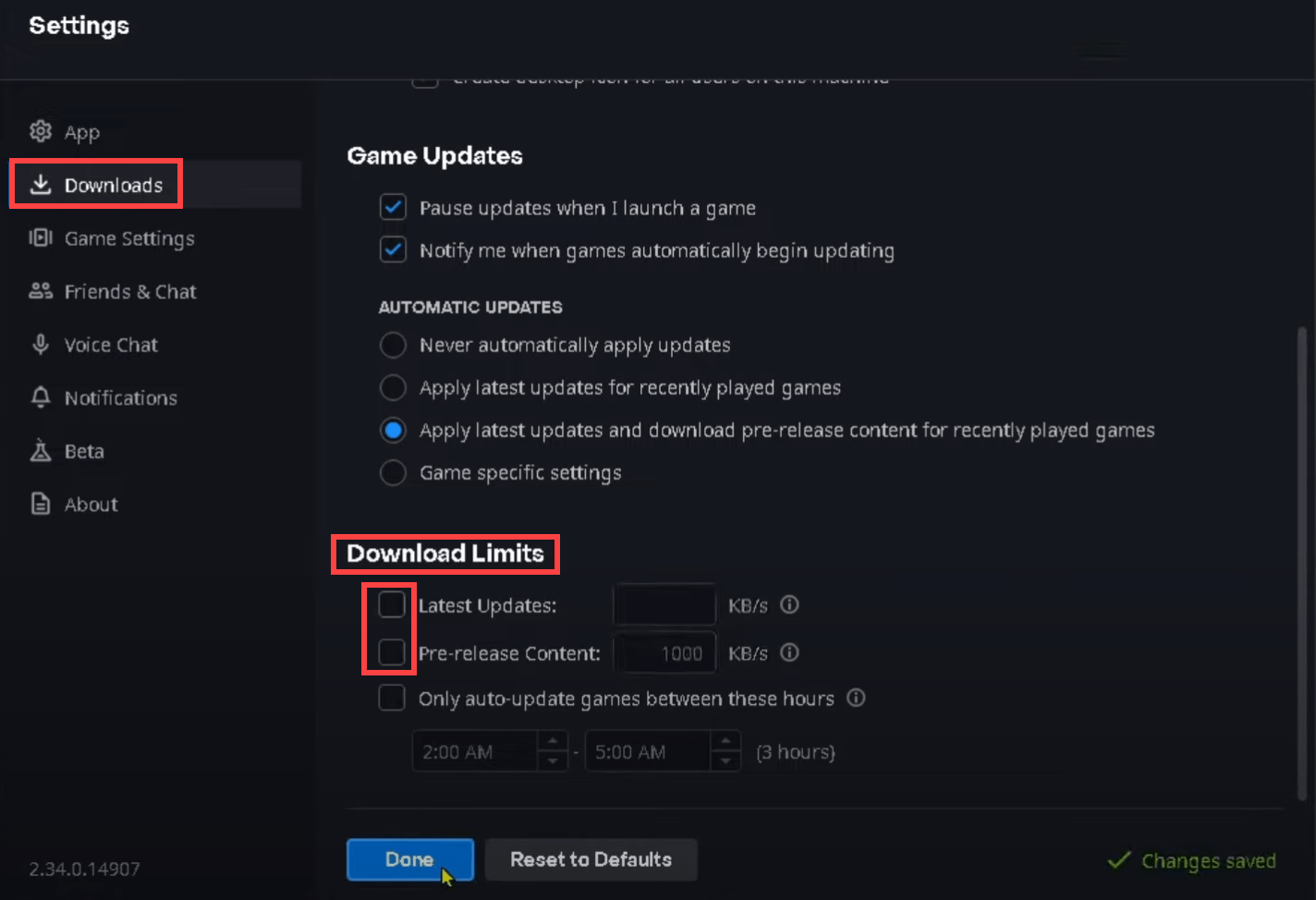
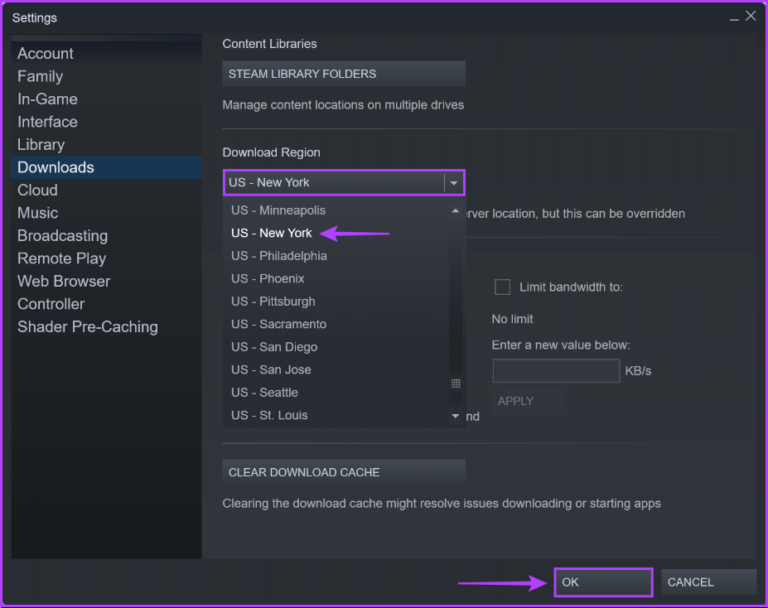
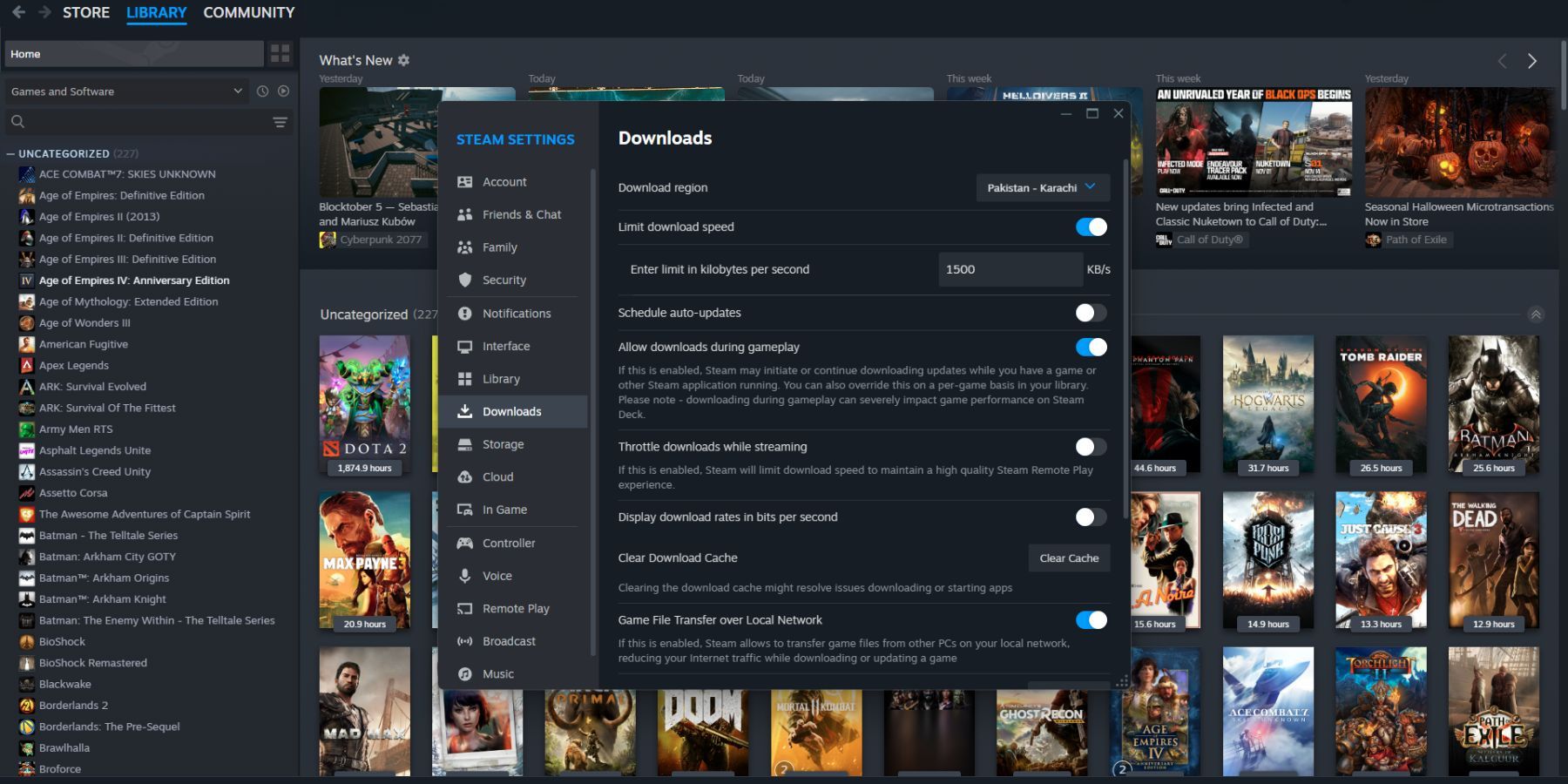
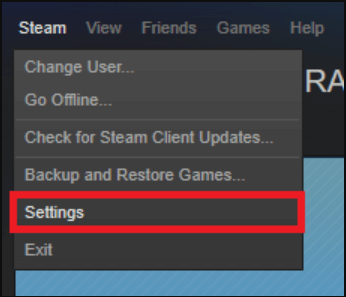
To access these settings, open Steam, click 'Steam' in the top-left corner, and then select 'Settings'. From there, navigate to the 'Downloads' tab.
Change Download Region: This is crucial. Steam automatically selects a download region, but it's not always the best one. Choose a server that is geographically closer to you or, if your closest is congested, one in a nearby city or country that is known for good internet infrastructure. Experimentation can help you find the fastest server. For example, if you are in the US Midwest, trying servers on the East or West Coast might yield better results than a default pick.
Clear Download Cache: Over time, Steam's download cache can become corrupted or cluttered, leading to errors or slowdowns. Clearing it forces Steam to refresh its download process. You'll need to log back into Steam after doing this.
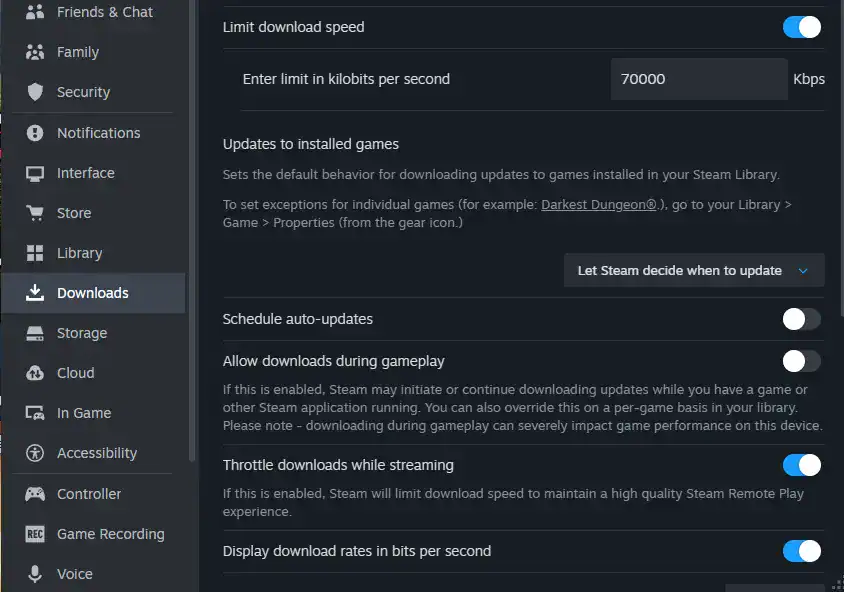
Disable Download Throttling: Ensure the 'Limit bandwidth to' option is unchecked or set to 'No Limit'. This ensures Steam can use your full internet speed.
Allow Downloads During Gameplay: For those multitasking, ensure 'Allow downloads during gameplay' is enabled if you want games to update in the background. However, if performance during play is critical, you might want to disable this.
How Do I Manage My Network Bandwidth Effectively While Downloading?
Even with a fast internet connection, other devices and applications on your network can hog bandwidth, leaving less for Steam. This is particularly relevant for the average US gamer who shares their connection with family members streaming 4K content, video calls for work, or other games. Social gaming trends, with friends chatting on Discord while others stream, also mean shared bandwidth is a reality.
Close Bandwidth-Hungry Applications: Before starting a large download, close streaming services (Netflix, YouTube), other game launchers, cloud backup services (Dropbox, OneDrive), and torrent clients. Even web browsers with many tabs open can consume significant resources.
Limit Other Devices: If possible, ask household members to temporarily pause their high-bandwidth activities during your critical download times. Scheduling your downloads for off-peak hours (e.g., late night or early morning) can also help, as general internet traffic is lower.
QoS Settings on Your Router: Many modern routers have Quality of Service (QoS) settings. You can configure QoS to prioritize your gaming PC or Steam's traffic, ensuring it gets preferential bandwidth treatment over other applications.
What Role Does My Hardware Play in Steam Download Speeds?
While often overlooked, your computer's hardware, especially your storage drive, can be a significant bottleneck for Steam downloads. It's not just about how fast data arrives, but how fast your system can write it to disk.
SSD vs. HDD: If you're downloading to an older Hard Disk Drive (HDD), its write speeds might be the limiting factor. Solid State Drives (SSDs) offer vastly superior write speeds, making them ideal for faster game installs and updates. An SSD upgrade is one of the best budget-friendly hardware improvements for overall PC performance, including download efficiency.
Sufficient Free Space: Ensure you have plenty of free space on your target drive. Extremely low disk space can lead to fragmentation and slow write operations. Aim for at least 15-20% free space.
RAM: While less direct, sufficient RAM helps your system manage temporary files and background processes more smoothly, indirectly supporting faster downloads.
How Can I Troubleshoot Common Steam Download Issues?
Sometimes, downloads just refuse to cooperate. Here are some quick troubleshooting steps for persistent problems:
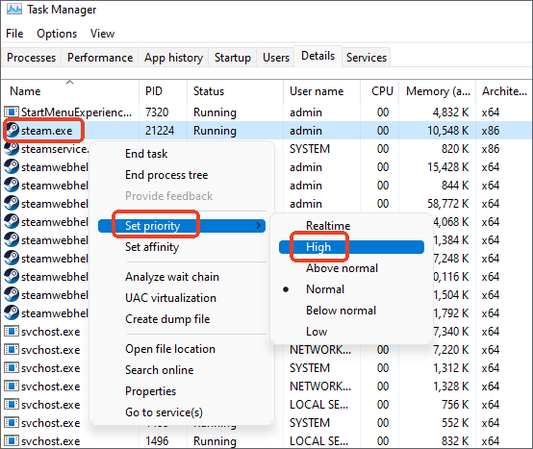
Run Steam as Administrator: Right-click the Steam shortcut and select 'Run as administrator'. This can resolve permission-related issues that might be hindering downloads.
Disable Antivirus/Firewall Temporarily: Your security software might be overly aggressive, scanning every incoming data packet and slowing things down. Temporarily disable it to see if speeds improve. Remember to re-enable it afterward.
Verify Integrity of Game Files: If a specific game update is causing issues, right-click the game in your library, go to 'Properties', then 'Local Files', and 'Verify integrity of game files'. This can fix corrupted update files.
Reinstall Steam (Last Resort): If all else fails, a clean reinstallation of Steam can sometimes resolve deep-seated issues. Make sure to back up your 'steamapps' folder (which contains your installed games) before uninstalling so you don't have to re-download everything.
Are There Any Advanced Tips for Power Users to Boost Speed?
For those looking to squeeze every bit of performance, consider these advanced strategies:
Check Router Firmware: Ensure your router's firmware is always up-to-date. Manufacturers frequently release updates that improve performance, security, and stability.
DNS Server Change: Sometimes, your ISP's default DNS servers aren't the fastest. Switching to public DNS servers like Google DNS (8.8.8.8, 8.8.4.4) or Cloudflare (1.1.1.1, 1.0.0.1) can occasionally speed up domain resolution, which might slightly improve download initiation.
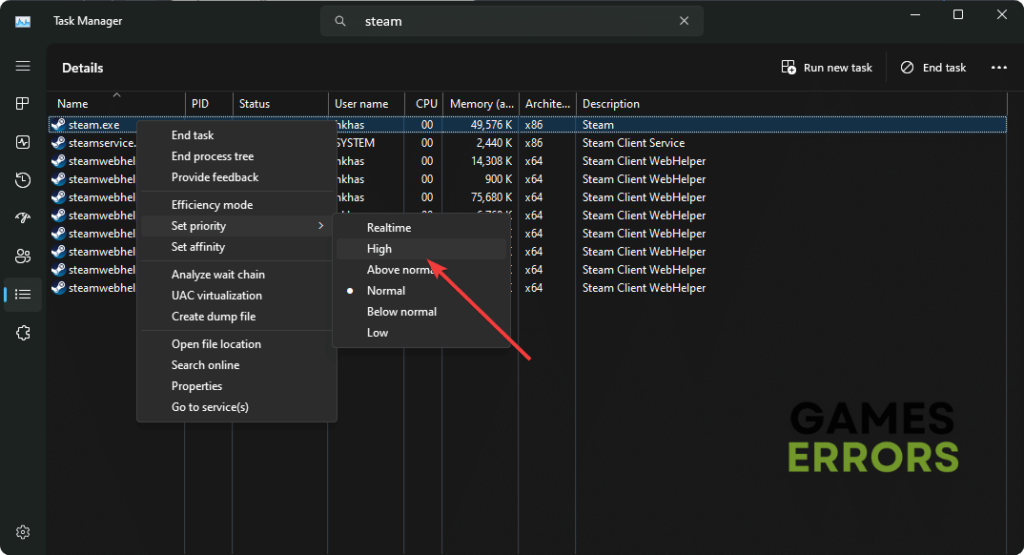
Monitor Network Traffic: Use tools like Task Manager (Windows) or Activity Monitor (macOS) to see what applications are consuming network bandwidth in real-time. This helps identify hidden culprits.
How Do I Keep My Download Speeds Fast Over Time?
Maintaining fast download speeds is an ongoing process, not a one-time fix. Regularly clearing your Steam download cache (every few months or when issues arise) and keeping your PC's storage healthy are good habits. Staying informed about your internet plan and router capabilities can also ensure you're getting the most out of your setup. As gaming trends evolve, so do game sizes and update frequencies, making optimization an evergreen task for the dedicated gamer.
What About Social Gaming and Download Speed?
The rise of social and cozy games, alongside the enduring popularity of competitive titles, means many gamers are juggling their downloads with active multiplayer sessions or Discord chats. This month's data shows increasing engagement in cross-play and community-driven titles. When friends are waiting for you to join a session, slow downloads become even more frustrating. Applying these tips means you'll be able to jump into the action faster, enhancing your social gaming experience and keeping your online friendships strong without the dreaded
Optimize network settings for peak performance, Prioritize Steam traffic over other applications, Select the fastest Steam download region, Clear download cache regularly, Upgrade your internet connection or hardware efficiently, Utilize Steam download scheduling and bandwidth limits, Troubleshoot common download bottlenecks quickly
35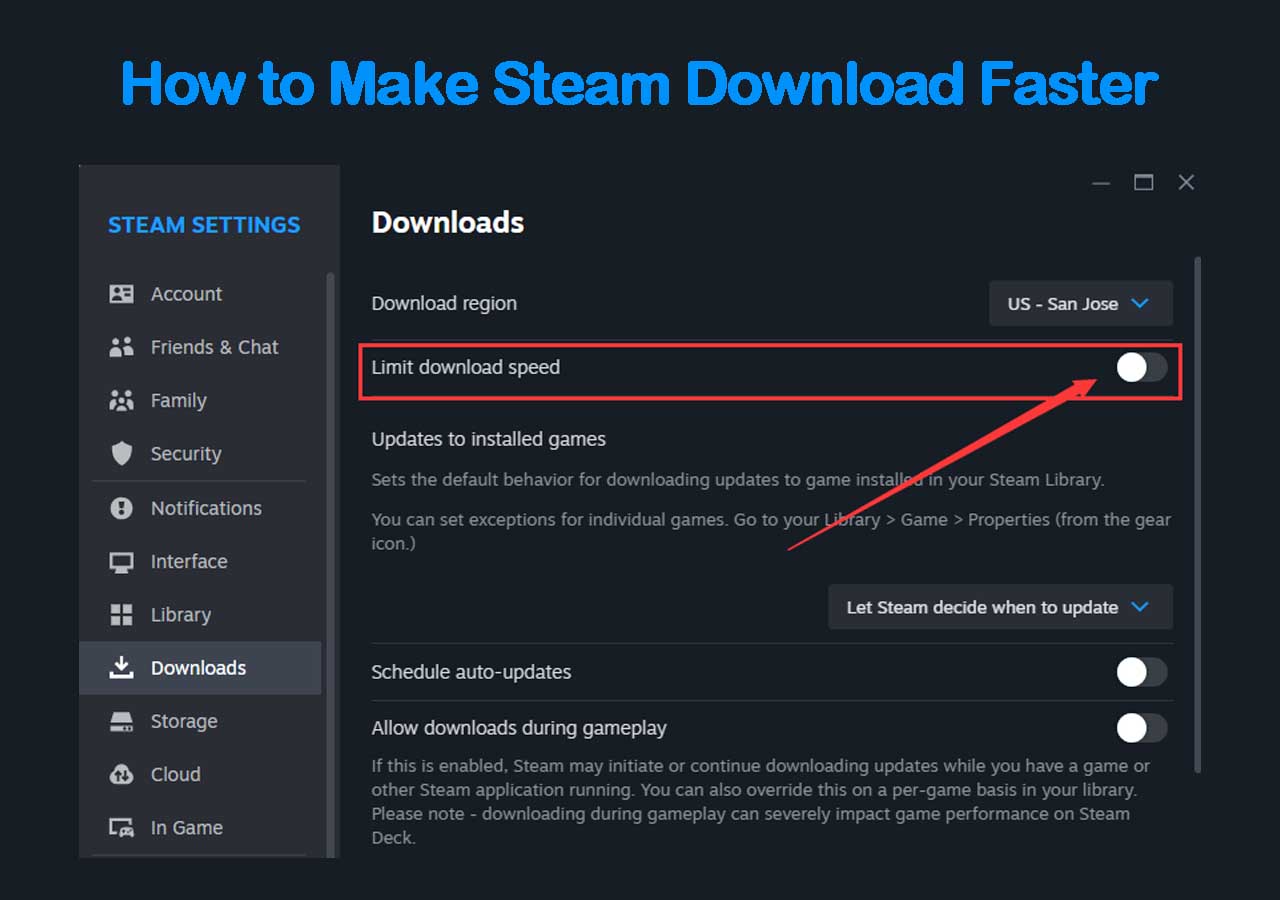


How To Make Steam Download Faster On Windows 10 11 In 2026 How To Make Steam Download Faster . How To Make Steam Download Faster 11 Simple Tricks V4 460px Make Steam Download Faster Step 4 . HOW TO DOWNLOAD STEAM GAMES FASTER YouTube . How To Make Steam Download Faster 7 Steps To Increase Download Speed How To Make Steam Downloads Faster.webp. How To Make Steam Download Faster In 2026 Boost Your Speed Steam Download Drops Zero


How To Speed Up Steam Downloads How To Speed Up Steam Downloads Ott 5 Compressed 768x654 . How To Make Steam Download Faster YouTube . How To Make Steam Downloads Faster Speed Up Steam Downloads YouTube . How To Speed Up Steam Downloads How To Speed Up Steam Downloads Ott 4 Compressed 768x654 . Steam Download Screenshot 6

How To Make Games Download Faster On PC Ultimate Guide Setting Steam High Priority Windows Task Manager 1024x555 . How To Make My Game Download Faster On Steam Dibujos Cute Para Imprimir . How To Make Steam Download Games Faster Robots Net How To Boost Download Speed On Steam 1695896816 . How To Make Download Speed Faster On Steam Robots Net How To Make Download Speed Faster On Steam 1695914504 . How To Get Steam To Download Faster Speed Up Tips How To Get Steam To Download Faster

Steam April 2026 Client Update Adds Remote Downloads Management Steam Client April 2026 1024x576 . How To Make Steam Download Faster 7 Steps To Increase Download Speed How To Make Steam Download Faster. How To Make Steam Downloads Faster In Windows 11 Guiding Tech Click On Downloads 1 768x608 . How To Make Steam Download Games Faster Robots Net How To Increase Steam Download Speed 2015 1695528265 . How Do I Make Downloads Faster On Pc Dibujos Cute Para Imprimir Featured How To Make Games Download Faster Pc


How To Change Where Steam Games Download Robots Net How To Make Steam Download Faster 2016 1695898531 . How To Make Steam Download Faster 7 Steps To Increase Download Speed Make Download Faster. Latest Steam Patch Improves Download Manager But Is It Windows Battle.net Download Limits . How To Make Steam Download Faster 11 Simple Tricks V4 460px Make Steam Download Faster Step 3 . How To Change Download Region Steam Robots Net How To Queue Games For Download On Steam 1695369688

How To Download Game On Steam Robots Net How To Download Games From Steam 1695367846 . Steam Download Issues And How To Make Steam Download Faster Webplore Add A Heading 2 . Left Community Fibre Not As Good As Openreach Network Page 2 Make Steam Download Faster Step 11 . How To Make Steam Download Faster In 2026 Boost Your Speed Steam Slow Downloads Despite Fast Internet . How To Make My Download Speed Faster On Epic Games Dibujos Cute Para

How To Make Steam Downloads Faster In Windows 11 Guiding Tech Change Location 1 768x608 . Ready To Game Launching Steam Games Made Easy . How To Make Cod Download Faster Seven Essential Tips To Speed Up Steam Downloads . How To Fix Steam Games Slow Download Speed 2026 Step By Step YouTube . Slow Steam Download Here Re Ways To Make Steam Download Faster How To Make Steam Download Faster 3